
What this is: how to get a dependable connection for virtual care, confirm it works, and keep going if it drops.
Who it's for: care staff, nurses and the IT contact supporting virtual care.
A virtual consultation is only as good as the connection behind it. A dropped call mid-assessment is frustrating for everyone and undermines confidence in virtual care. The good news: most connection problems are predictable and preventable with a bit of preparation. This guide covers getting set up, testing, and what to do when the connection wobbles.
Know your locations
Connection quality varies room to room. Before you rely on virtual care in a space, confirm coverage there:
- Test the connection in each location you'll use: resident rooms, the nurses' station, treatment rooms.
- Note where coverage is strong and where it's weak.
- For weak spots, identify the nearest well-connected room as a fallback.
- Document what you find so the whole team knows the good and bad spots.
Have a backup connection
A single connection is a single point of failure. Where feasible, set up a backup:
- A mobile (4G/5G) hotspot or a SIM-enabled device gives you a second path if the Wi-Fi fails.
- Keep the backup charged and know how to switch to it quickly.
- For fixed locations with poor Wi-Fi, a wired connection is the most reliable option.
Test before every consult
A quick check before the resident is in the room saves a lot of trouble:
- Log in a few minutes early.
- Confirm the video and audio are clear on a test.
- If the picture is pixelated or frozen, that's usually bandwidth, switch location or connection before you start.
- Don't leave the resident waiting while you sort a connection problem.
If the connection drops mid-consult
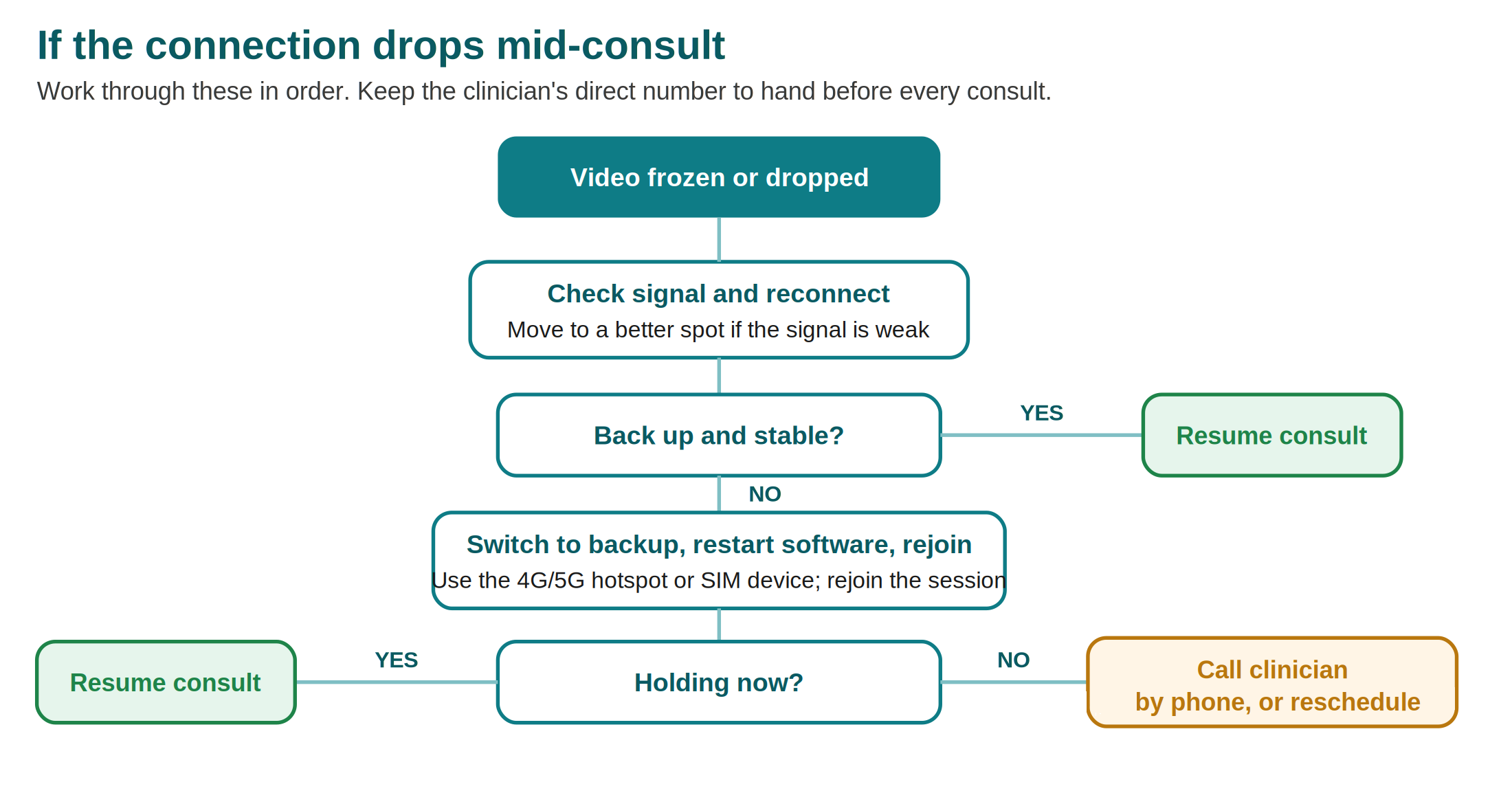
Stay calm and work through it. Frozen or pixelated video is almost always the connection:
- Check the signal strength. If it's weak, move to a better-connected spot or reconnect.
- Switch to your backup connection if the main one won't hold.
- Restart the virtual care software and rejoin the session.
- If it still won't hold, call the clinician on their direct number to continue by phone or reschedule.
Keep the clinician's direct contact handy at the start of every consult, so a dropout doesn't end the review.
If the connection drops mid-consult, at a glance
Working with your IT team
Some connectivity issues are best solved upstream. Your IT contact can help with:
- Confirming adequate bandwidth and Wi-Fi coverage in the spaces you use.
- Setting up and maintaining a backup connection.
- Making sure virtual care devices have the access and permissions they need.
- Prioritising virtual care traffic on the network where possible.
Build a working relationship with whoever supports your network, so issues get fixed at the source rather than worked around every time.
Need help?
- Visionflex support: visionflex.com/support | support@visionflex.com | +61 2 8914 4000 (9am to 5pm AEST)
- See also: Setting up your virtual care space and Troubleshooting: hardware and software.
Visionflex acknowledges the Traditional Custodians of Country throughout Australia and pays respect to Elders past, present and emerging.