
What this is
Every control on the Vision call toolbar, in one place. The toolbar is identical on every virtual care station and on Vision in a browser, so this article applies no matter which equipment you use.
Who it's for
Anyone in a Vision call. When the Vision interface updates, this article is updated with it.
The call controls
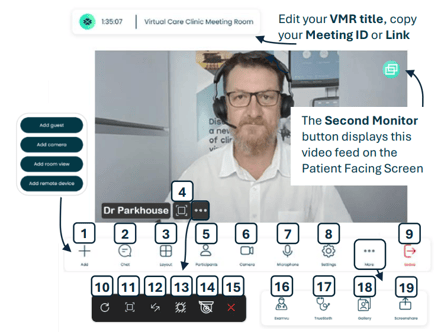
- Add guests and add video sources such as USB and network cameras.
- Open the chat window to write to other participants.
- Change the layout of your feed windows.
As a host, hold SHIFT to force your layout onto everyone. - Take a snapshot of this window and save it into the session library.
- Invite and admit participants from the lobby.
- Toggle your camera on and off.
- Toggle your microphone on and off.
- Open the camera and audio device selection settings.
- Exit the meeting. If you’re a host, you can end for all.
- Refresh your video and audio feed if participants can’t see or hear you properly.
- Take a snapshot and save it into the session library.
- Flip this video window. This is useful for clinical video feeds of medical cameras.
- Turn on background blur. Consider using this if there is sensitive information visible behind you.
- Unlock the movement controls for your pan-tilt-zoom camera so other participants can reposition it.
- Remove this video container from the call.
- Start and share the ProEX clinical software to stream the data from connected clinical peripherals.
- The TrueSteth tool is used with your digital stethoscope to transmit clinical audio to the far-end doctor.
- Open the gallery tool to view, edit and save snapshots, whiteboard and markup PDFs.
- You can screenshare a window, a browser tab, or your entire screen with the meeting participants.
Using your station
Everything below is shared across Visionflex stations and kept permanently up to date, so you are always reading current instructions.
Vision calls
- Get started with Vision. Log in, accounts and your Virtual Meeting Room.
- Schedule a meeting. Send invitations for scheduled consultations.
- Set up for a consultation. Camera, microphone and permissions before a call.
- Virtual care call controls. Every button on the Vision toolbar.
- Use the patient facing monitor and camera. The swing arm, second monitor and PTZ controls.
- Work with clinical images in the gallery. Snapshots, telestration and sharing.
Clinical examinations
- Clinical examinations with ProEX. Start ProEX, log in and share it in a call.
- ProEX Exam Mode. Capture vitals and readings from your devices.
- Use your SyncVision otoscope. Ear, nose and throat examinations.
- Use your GEIS examination camera. Close-range imaging with clip-on accessories.
- Stethoscope exams with TrueSteth. Heart and lung sounds for the far-end doctor.
- Patient data and PDF reports. Save sessions and export reports.
Your equipment
- Power Cell 600 user manual. Charging, UPS mode and battery care.
- Pre-session audio checklist. Confirm your sound is right before each call.
- Troubleshooting. Fix call, audio and camera issues.
Need help?
Call 02 8914 4000 | Email support@visionflex.com | Visit visionflex.com/support
Visionflex acknowledges the Traditional Custodians of Country throughout Australia and their continuing connection to land, sea and community. We pay our respects to Elders past and present.