
What this is: quick fixes for problems on a Vision call, organised by what you are seeing or hearing.
Who it’s for: anyone running a consult on a Visionflex station, mobile kit or own computer.
For general hardware fixes (power, peripherals, frozen software), see Troubleshooting: hardware and software in your Aged Care or Remote and Primary Care section.
Camera, microphone or sound not working?
Run these two checks in order, on the computer with the problem. They cover browser settings, permissions and device access. They don't cover network problems.
Check 1: Refresh the browser so the permissions apply.
Check 2: Let Vision play sound and video
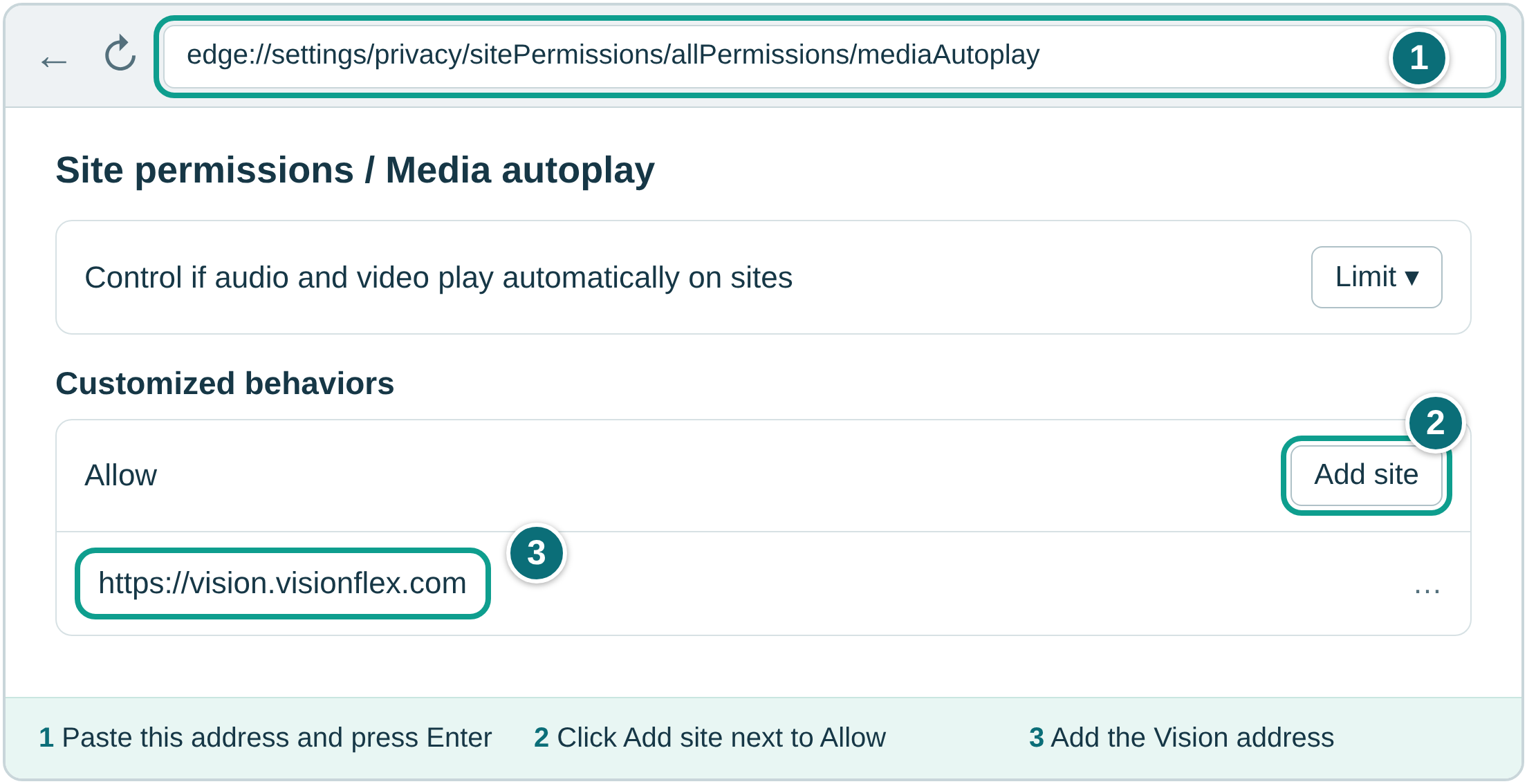
Some browser settings stop sound and video playing on a website. These steps are for Microsoft Edge.
- Open Edge. Paste this address into the address bar and press Enter:
edge://settings/privacy/sitePermissions/allPermissions/mediaAutoplay - Next to Allow, click Add site.
- Enter https://vision.visionflex.com and click Add.
- If you use an ad blocker, turn it off for Vision.
- Refresh the Vision page.
Check 3: Test your camera and microphone before you join
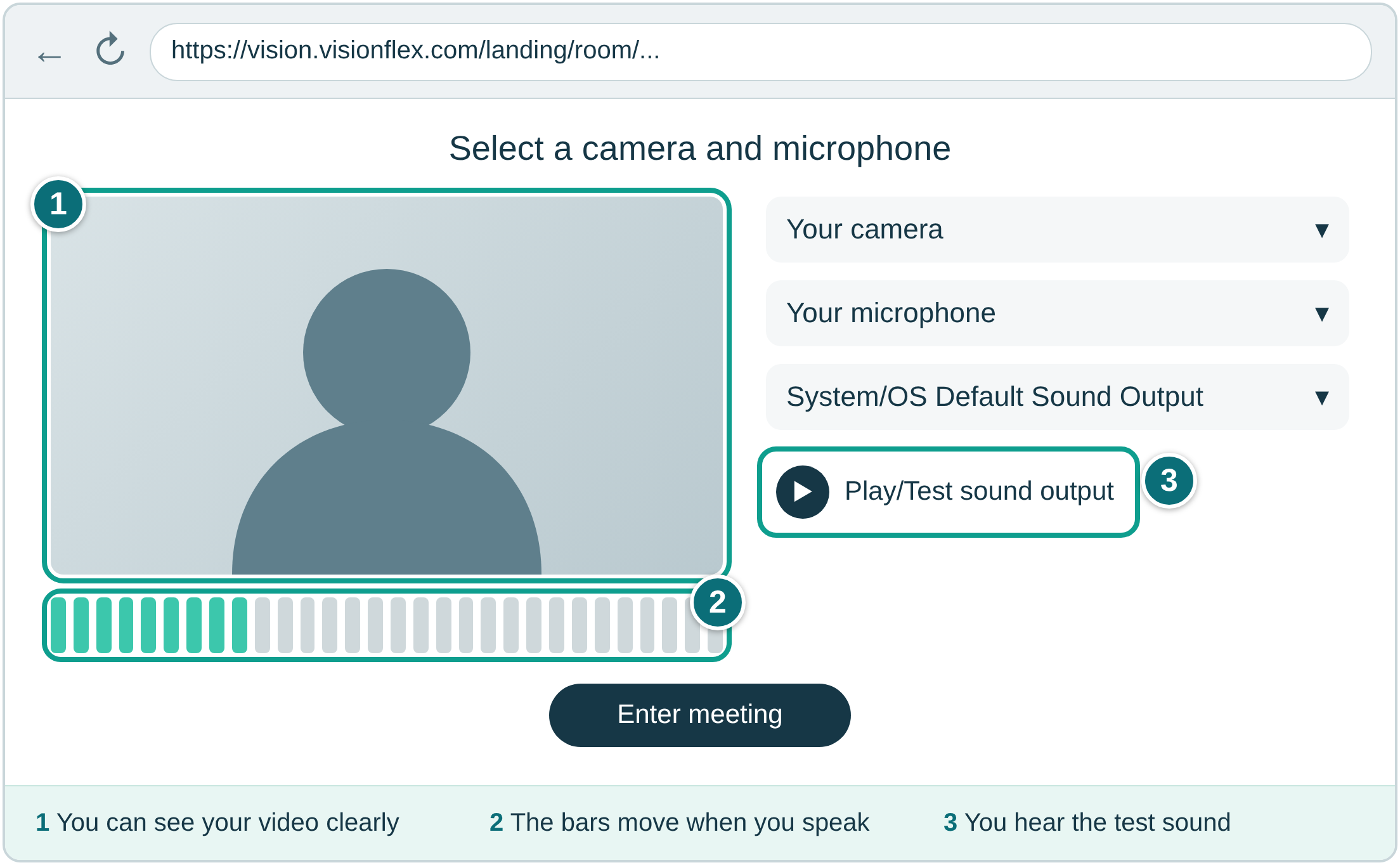
- Open your Vision meeting and stop at Select a camera and microphone. Don't click Enter meeting yet.
- Check you can see your video clearly.
- Speak, and check the bars under your video move.
- Click Play/Test sound output and check you can hear it.
No video, or the bars don't move?
- Close anything else that may be using your camera or microphone, such as Teams, Zoom or the Camera app. Refresh the page.
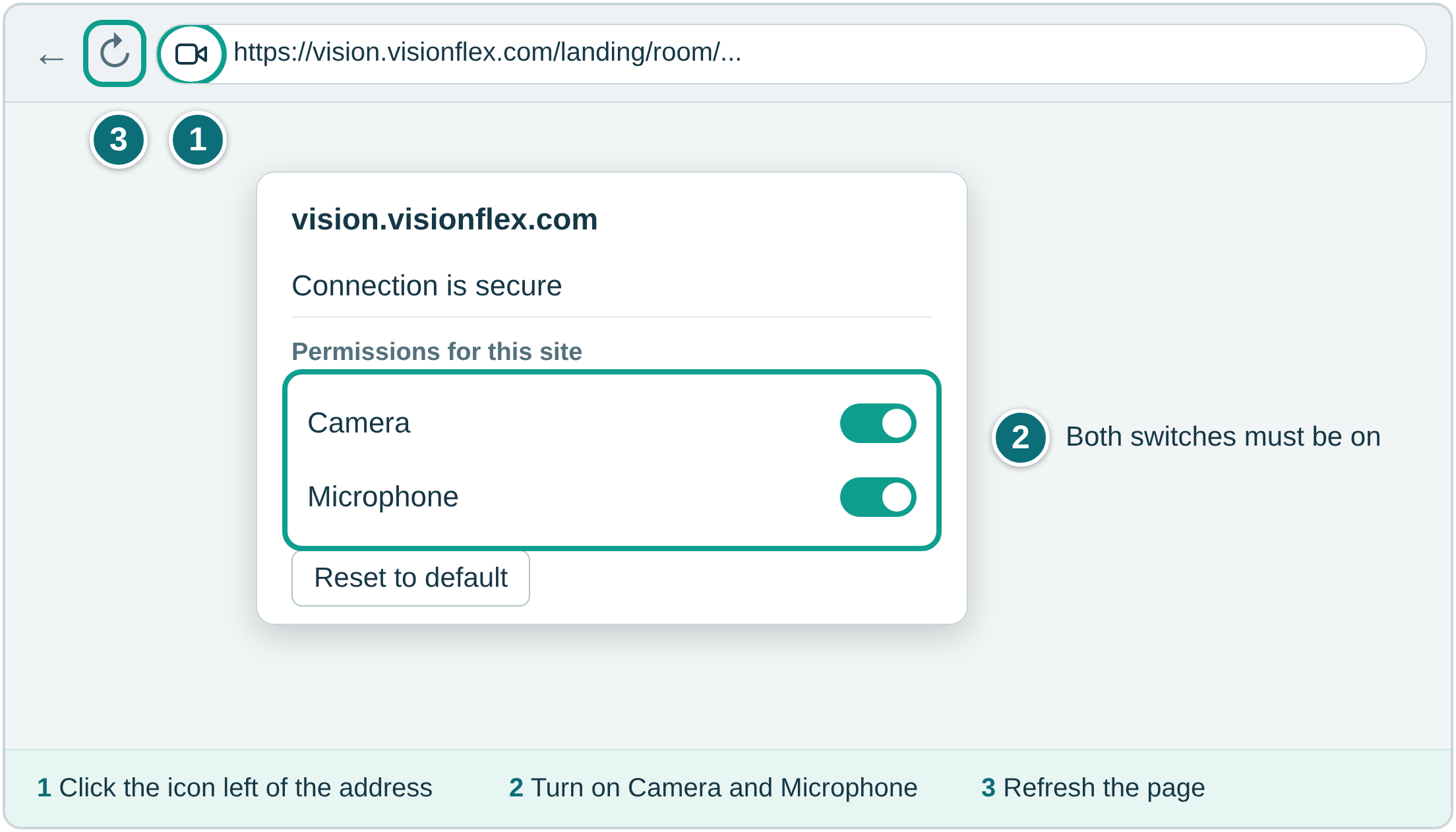
- Click the icon at the left of the address bar (a camera or padlock). Turn on Camera and Microphone, then refresh the page.
Still not working?
- Check Windows. Open Settings, then Privacy & security, then Camera. Turn on Camera access, Let apps access your camera and Let desktop apps access your camera. Do the same under Microphone.
- Setting greyed out or locked? Your IT team manages it. Send them the Network and environment configuration guide.
- Using Chrome? Check 2 works the same way. For Check 1, click the icon at the left of the address bar, open Site settings and set Sound to Allow.
- Tell us what you saw. Log a support ticket with the result of each check and a screenshot if your policy allows. See Getting support and training.
You hear an echo
- Use the same device for input and output, for example the speakerphone for both.
- Or switch to a headset.
You can’t hear the others
- If you can't hear anyone at all, run the three checks in Camera, microphone or sound not working? first.
- Look at the green line under their video. If it moves when they speak, their microphone is working and the problem is at your end.
- Click Settings in the Vision toolbar, check the speaker, then turn on Set as default pair.
- Check the speakerphone or headset is connected, switched on and not muted.
- Right-click the volume icon near the clock and check the volume. Reconnect the device and refresh the browser.
The others can’t hear you
- Look at the green line under your video. If it moves when you speak, your microphone is working and the problem may be at their end.
- Click Settings in the Vision toolbar, check the microphone, then turn on Set as default pair.
- Check the speakerphone or headset is connected, switched on and not muted.
- Check Windows sound settings, then reconnect the device and refresh.
The others can’t see you
- Click Settings in the Vision toolbar and check the right camera is selected. Turn on Set as default pair.
- Check the camera isn’t in privacy mode and no shutter or lens cover is in the way.
- Close Microsoft Teams or any other app that might be using the camera.
- Unplug and reconnect the webcam, then refresh the browser.
The stethoscope sounds are missing or weak
- Plug in the stethoscope and headphones before you open TrueSteth.
- In Windows sound settings, set the PCP-USB input to about 80%.
- Check the headphone output is loud enough and the headphones are selected as Audio Out.
- Reconnect the device and refresh the browser.
A clinical camera doesn’t show in ProEX
- Reconnect the camera, go back to Exam Mode, then open Camera again.
- Check the camera is selected in Device Settings.
The picture is poor, jittery or keeps dropping
- Click the refresh button in the Vision toolbar to reconnect the feeds.
- On a slow connection, Vision keeps the image sharp rather than smooth, so it may drop frames. Close other apps, move closer to the Wi-Fi or use a wired connection.
- Run the pre-call network test to check your bandwidth and network settings.
- If your network blocks video, send your IT team the Network and environment configuration guide.
The patient is stuck in the lobby
Click More (…), then Participants, and click Admit.
Still stuck?
Call the clinician on their direct line so the consult can continue by phone, then log a support ticket. Tell us:
- the date, time and location of the session
- the station or device you were using
- the connection type (Wi-Fi, wired or mobile)
- any error message, and a screenshot if your policy allows.
See Getting support and training.
Related guides
Need help?
Your Visionflex team is here to support your rollout, training and day-to-day use.
Visionflex support: visionflex.com/support | support@visionflex.com | +61 2 8914 4000 (9am to 5pm AEST)
Visionflex acknowledges the Traditional Custodians of Country throughout Australia and pays respect to Elders past, present and emerging.